How to Fix Blurry Dash Cam Video?
Dash cams have become essential for drivers who want to protect themselves on the road. These handy devices record everything that happens while you drive, giving you evidence if an accident occurs. The problem is that many dash cam owners end up with blurry video footage that’s almost useless when they need it most. You’ve got a recording of that fender bender, but the license plate is fuzzy, the traffic light is unclear, and the other driver’s face looks like a smudged painting.
In this article
The good news? You can fix blurry dash cam video. Whether your footage is already blurry or you want to prevent the problem before it starts, this guide will walk you through every solution you need to know.
Why Your Dash Cam Video Looks Blurry in the First Place
Before you can fix the problem, you need to know what’s causing it. Blurry dash cam footage doesn’t happen by accident. Several factors can turn crystal-clear video into an unusable mess.
Dirty Lens Issues
The most common culprit is a dirty camera lens. Your dash cam sits on your windshield, which means it gets exposed to all kinds of debris. Dust, fingerprints, water droplets, and grime build up on the lens over time. Even a tiny bit of dust can scatter light and make your video look blurry. This is the easiest problem to fix because it’s purely a cleaning issue.
Poor Focus Settings
Dash cameras come with different focus options. Some cameras have fixed focus, while others let you adjust focus manually. If your dash cam isn’t set to the right focus distance, everything beyond a certain point will look fuzzy. This is especially noticeable if you’re recording distant objects like other vehicles or street signs. Manual focus cameras need proper adjustment to work well, and many people simply don’t know how to do this correctly.
Motion Blur During High Speed
When you’re driving fast, motion blur becomes a real problem. The camera’s shutter speed might be too slow for the fast movement happening around you. Everything looks streaky and unclear because the sensor is capturing movement over too long a time period. This is common on budget dash cams that can’t adjust shutter speed properly.
Low Light Conditions
Driving at night or in rainy weather means less light hits the camera sensor. To compensate, dash cameras slow down the shutter speed. This creates motion blur because the sensor needs more time to gather enough light. Night driving footage often looks worse than daytime footage for this reason.
Cheap Camera Components
Not all dash cams are created equal. Budget models often use low-quality lenses and sensors that can’t produce sharp images. Some cheap cameras also have problems with compression that makes video look fuzzy and blocky. You might be fighting against the camera itself rather than a fixable problem.
Out of Focus Autofocus
Modern dash cameras often include autofocus features. These systems continuously adjust the focus to keep moving subjects sharp. However, autofocus can get confused by reflections on the windshield, sudden lighting changes, or objects moving at unusual speeds. When autofocus gets confused, it sometimes locks onto the wrong focus distance, leaving your actual subject blurry.
Clean Your Dash Cam Lens
Let’s start with the simplest fix. A clean lens makes an enormous difference in video quality.
What You’ll Need
Grab a microfiber cloth (the kind you use for glasses works perfectly), some lens cleaning solution, and maybe some compressed air. You don’t need anything fancy or expensive. Avoid paper towels or rough cloths because these can scratch the lens coating.
How to Clean Properly
Start by using compressed air to blow away any loose dust or debris. Hold the can upright and use short bursts. Don’t shake the can or hold it sideways because you might spray liquid onto the lens. Once you’ve removed the loose stuff, apply a tiny amount of lens cleaning solution to your microfiber cloth (not directly to the lens, as this prevents liquid from dripping into the camera body).
Gently wipe the lens in circular motions, starting from the center and working toward the edges. Don’t press hard. Let the cloth do the work. Repeat if needed until the lens looks completely clear. Use a dry corner of the cloth to remove any streaks.
How Often Should You Clean?
Clean your dash cam lens once a month at minimum, more often if you drive in dusty conditions or in bad weather. Think of it as part of regular car maintenance. A quick cleaning takes five minutes and can save you from blurry footage when you really need the video.
Adjust Your Dash Cam’s Focus
If cleaning doesn’t solve the problem, focus adjustment might help.
Manual Focus Dash Cams
Some dash cameras have a manual focus ring you can turn to adjust focus. Look at the back or side of your camera for a small ring with distance markings. Common distances include infinity (∞), which focuses on far-away objects. Rotate this ring until distant objects in your video look sharp. You might need to adjust it a few times to get it right.
Start by pointing your camera at something about 15 feet away and adjusting the focus ring until that object looks sharp. Then drive around and see how distant objects look. If they’re still fuzzy, adjust the ring slightly and test again. This process takes patience, but it usually improves video quality significantly.
Autofocus Issues
If your dash cam has autofocus, check your settings menu. Some cameras let you turn autofocus on or off, or switch between different autofocus modes. Try disabling autofocus and manually setting the focus to infinity. Many dash cam owners find that autofocus actually makes their video worse, not better.
You might also find a focus speed setting. Slow down the autofocus speed if your camera keeps hunting for focus and never settles on anything. A slower focus system might seem annoying, but it often produces sharper video than a fast autofocus that changes focus constantly.
Reset to Factory Settings
Sometimes focus settings get messed up accidentally. Check your dash cam’s menu for a reset option. Resetting to factory defaults often solves focus problems, especially if you’ve never adjusted these settings intentionally.
Optimize Your Dash Cam Settings
Your camera’s settings have a huge impact on video sharpness.
Resolution and Frame Rate
You might think that recording in the highest resolution possible is always best, but this isn’t true. High resolution combined with compression can actually make video look worse. Try recording at a lower resolution like 1080p instead of 4K if your 4K footage looks blurry. Lower resolution requires less compression, which means sharper video and fewer artifacts.
Frame rate also matters. Most dash cams record at 30 frames per second, but some cameras let you choose 24 fps. At high speeds, 30 fps might not be fast enough to freeze motion. Some cameras offer 60 fps mode, which produces smoother, sharper video during fast movement.
Exposure Settings
Check if your dash cam has exposure compensation or EV (exposure value) settings. These controls let you make the video brighter or darker. If your video is overexposed (too bright), details get washed out and everything looks fuzzy. If it’s underexposed (too dark), the camera boosts the signal, which introduces noise and blur. Find the sweet spot where your video is properly exposed.
Some dash cameras also have a wide dynamic range mode or HDR setting. These features help maintain detail in both bright and dark areas of the scene. Enabling this feature can improve sharpness significantly, especially in high-contrast situations like driving toward bright sunlight.
White Balance
White balance affects how colors look, but it also impacts sharpness. If white balance is set incorrectly, your video can look washed out or have strange color casts. Washed-out video looks blurry even if it’s technically sharp. Look for automatic white balance or try setting it to “daylight” or “sunny” mode during the day. Adjust this setting based on actual driving conditions.
Upgrade Your Dash Cam Hardware
Sometimes the fix involves replacing your camera.
Invest in a Better Camera
Budget dash cams cost $50 to $100, but they often produce disappointing video quality. Mid-range cameras that cost $200 to $400 use better lenses and sensors that capture sharper footage in all lighting conditions. If you use your dash cam for protection and insurance purposes, a better camera pays for itself the moment you need clear video of an accident.
Look for cameras with the following features: optical image stabilization (OIS), which reduces motion blur; a large sensor size, which captures more light; and a quality lens with a wide aperture, meaning more light reaches the sensor.
Add External Lighting
If you drive mostly at night, consider adding external lighting that helps your camera see better. Some dash cam owners install small LED lights near their camera. More ambient light means the camera can use a faster shutter speed, which reduces motion blur.
Upgrade Your SD Card
A slow SD card can cause video compression problems that make footage look blurry and pixelated. Dash cams need fast cards with at least Class 10 speed rating and preferably A1 or higher performance rating. Faster cards handle continuous video recording without issues. This is an affordable upgrade that can noticeably improve video quality.
Fix Blurry Video That’s Already Recorded
What if your blurry video already exists? You might be able to improve it.
Use Video Enhancement Software
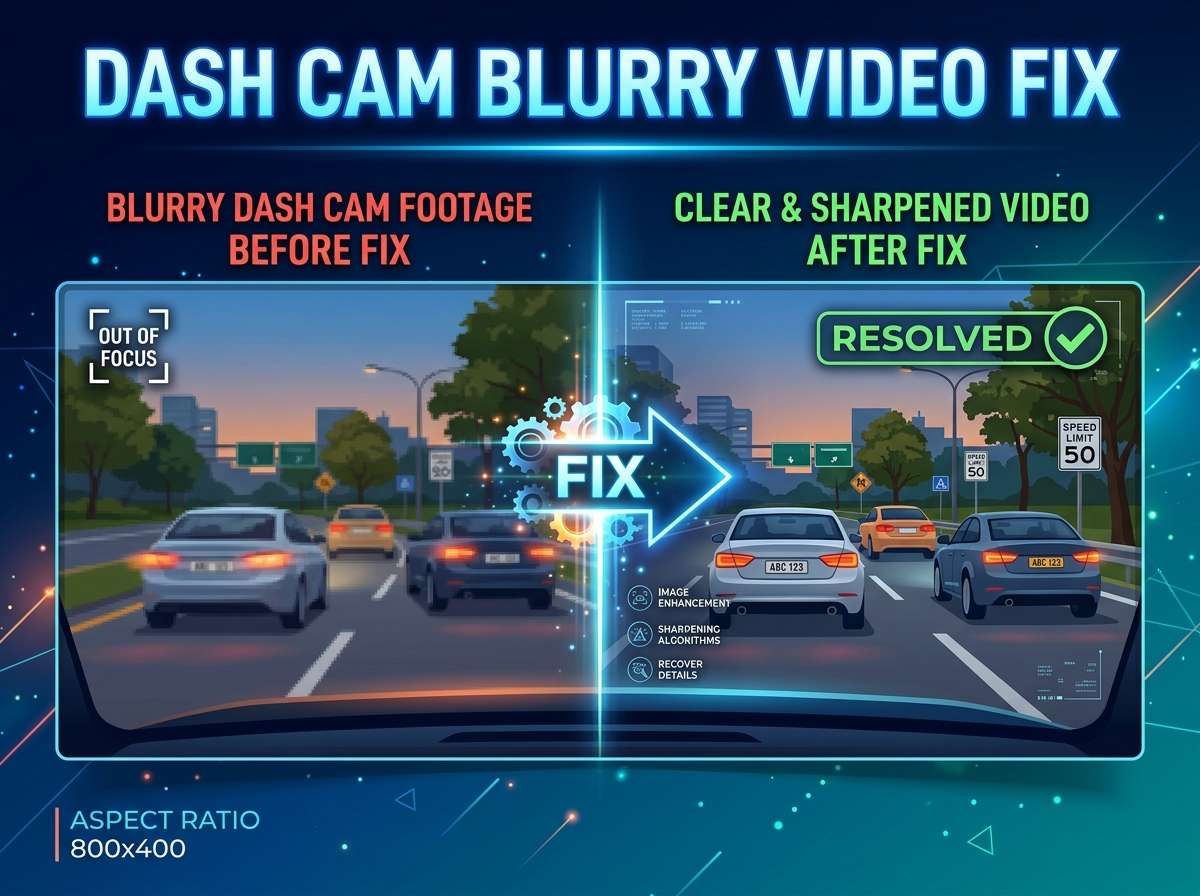
Several programs can sharpen blurry video after recording. Programs like Adobe Premiere Pro, DaVinci Resolve, or even free options like Shotcut let you apply sharpening filters to your footage. Simply import your video, apply a sharpen or unsharp mask filter, and export the result. You won’t turn completely blurry footage into crystal clear video, but you can often improve soft or slightly out-of-focus footage.
Upscaling Tools
If your dash cam recorded in low resolution, upscaling software can enlarge the video while maintaining quality. AI-powered upscaling programs like Topaz Gigapixels or FFmpeg can double or triple your video resolution. This is particularly useful if you need to zoom in on details like license plates.
Extract Key Frames
Sometimes a single blurry frame can be isolated and enhanced. Most video editing software lets you export individual frames as images. Once you have an image, you can use image enhancement tools or AI upscaling to improve quality. This works when you need one specific moment of footage to be clear.
Prevention: Stop Blurry Video Before It Happens
The best fix is preventing the problem from happening in the first place.
Establish a Cleaning Routine
Make dash cam maintenance part of your regular car care. Clean the lens before long trips, after driving in dusty conditions, and monthly as maintenance. This simple habit prevents most blurry footage problems.
Check Settings Regularly
Review your dash cam’s focus and exposure settings every few months. Make sure everything is still configured correctly. Take a test drive and watch some footage to confirm quality is good.
Park Strategically
Where you park your car affects lens cleanliness. Parking under trees exposes your camera to pollen and bird droppings. Covered parking or a garage keeps your lens cleaner. If you must park outside, consider using a windshield sunshade that also covers the camera area.
Monitor Temperature
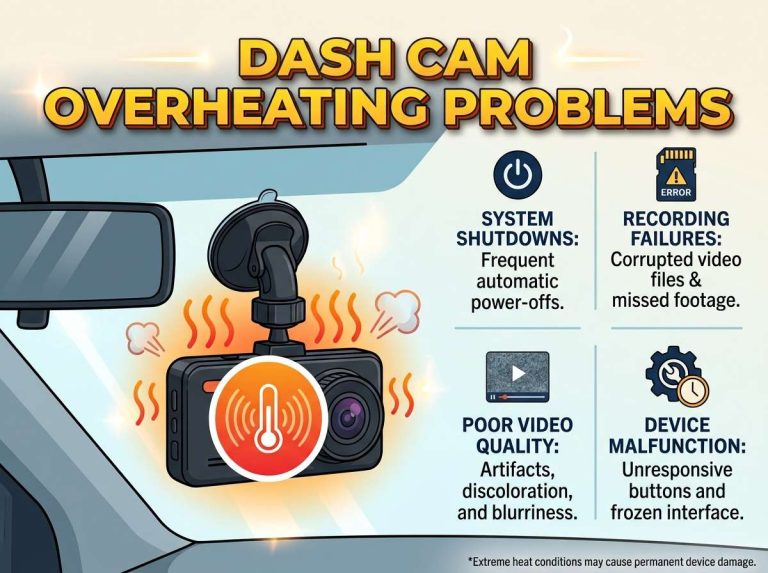
Extreme heat can damage camera components and cause focus drift. If your car sits in direct sunlight for hours, the camera might focus incorrectly due to heat expansion. Keep your car reasonably shaded when possible, and allow your dash cam to cool down before adjusting focus settings if it’s been sitting in hot sun.
Upgrade Proactively
Don’t wait until your dash cam breaks to replace it. If your camera consistently produces mediocre footage despite your best efforts, it’s time for a new one. A better camera prevents future frustration and actually protects you better on the road.
Common Dash Cam Blurry Video Problems and Solutions
The Night Time Nightmare
Nighttime footage is almost always fuzzier than daytime footage. You can’t prevent this entirely, but you can minimize it. Set your camera to night mode if it has one. This mode uses slower shutter speeds and increased gain to capture more light, creating sharper night footage than standard mode. It might introduce slight noise, but noise is better than motion blur.
Reflection Problems
Reflections on your windshield can confuse your camera’s focus system. If you see blurry footage with a bright glare, your camera might be focusing on the reflection instead of the road. Adjust your camera angle slightly or disable autofocus and set manual focus to infinity.
Rainy Day Blurriness
Rain on your windshield creates obvious problems, but you can reduce them. Many dash cameras have a rain mode that increases contrast to cut through water droplets. Use a water-repellent windshield treatment to help water bead off. Some owners use a small windshield wiper designed for cameras to clear water between your camera and the glass.
High Speed Fuzziness
When you’re driving on the highway, motion blur gets worse. Switch to 60 fps mode if available. This faster frame rate freezes motion better. Increase shutter speed if your camera’s settings allow. Faster shutter speed captures less motion blur but needs more light, so this works better on sunny days.
Color Banding and Compression Artifacts
If your video looks blocky or has strange color patterns, you’re probably dealing with compression issues. Try recording at a lower resolution. Lower resolution creates less data, which means less compression and fewer artifacts. Some cameras also have a “fine” or “high quality” setting that uses better compression. Experiment with these options.
Your Path to Crystal Clear Dash Cam Video
Blurry dash cam video is frustrating, but it’s almost always fixable. Start by cleaning your lens and checking your focus settings. Adjust your camera’s resolution, frame rate, and exposure settings. If software fixes don’t work and your camera is old, upgrade to a better model.
The key is being proactive. Clean your lens regularly, check your settings occasionally, and maintain your equipment. When you need your dash cam footage most, you want clear video that actually protects you. These fixes ensure you’ll have exactly that.
Your dash cam is only useful if it records clear, usable footage. Take the time to optimize your camera today, and you’ll never regret having sharp video when you need it.

Peterson is an automotive safety enthusiast and product reviewer with a passion for helping drivers stay safe on the road. He researches and tests dash cams, backup cameras, TPMS systems, emergency tools, GPS trackers, and other vehicle safety products to provide honest, practical recommendations. Through CarSafeties.com, Peterson shares in-depth reviews, buying guides, and maintenance tips to help drivers make smarter and safer decisions.