Obd2 Scanner Connection Problems
Many car owners use an OBD2 scanner to diagnose issues and discover why their check engine light is on. However, encountering OBD2 scanner connection problems can be a common frustration for beginners. This guide explains why these issues happen and provides clear steps to resolve them.
In this article
This article will cover the basics of how an OBD2 scanner connects to a vehicle, detail the most frequent connection challenges, and offer practical troubleshooting tips. Readers will learn how to identify the root cause of a connection failure and what actions to take to get their scanner working.
Important Points
- Ensure the car’s ignition is on, or the engine is running, for the OBD2 port to have power.
- Always check the physical connection: the cable must be firmly plugged into both the scanner and the car’s port.
- A blown fuse can prevent the OBD2 port from receiving power, leading to connection failures.
- Software compatibility and updates can be crucial for the scanner to communicate correctly with the vehicle.
- When in doubt, testing the scanner on another vehicle or consulting a professional can save time and effort.
What an OBD2 Scanner Is and How It Connects
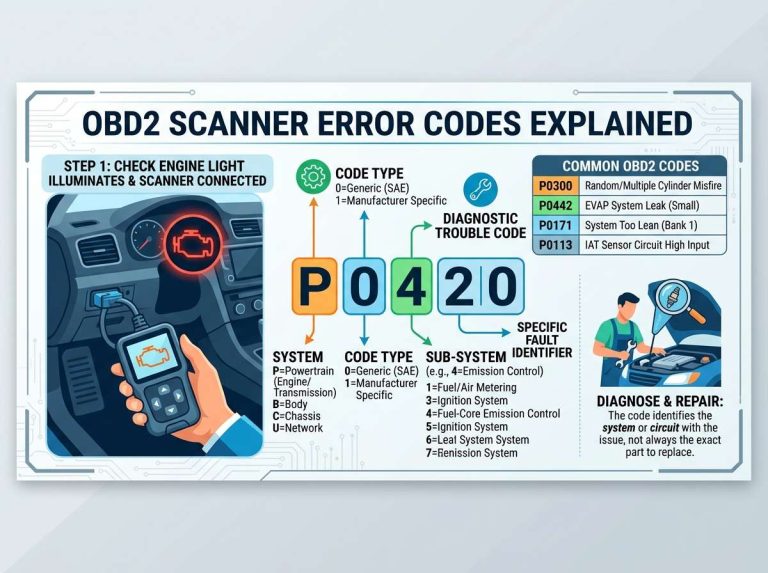
An On-Board Diagnostics, or OBD2, scanner is a tool that communicates with a vehicle’s computer system. It reads diagnostic trouble codes (DTCs), which are specific codes that indicate a problem within the car’s various systems. These tools help identify issues related to the engine, transmission, emissions, and more.
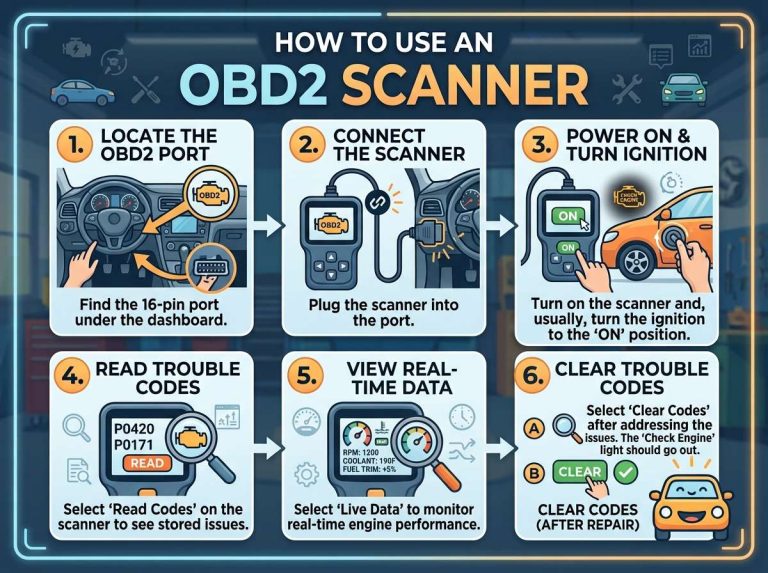
Connecting an OBD2 scanner is usually a straightforward process. The scanner plugs into a specific port in the car, often located under the dashboard. Once connected, the scanner establishes a link with the vehicle’s onboard computer, allowing it to retrieve information.
The OBD2 Port in Your Car
Every car sold in the United States since [[1996]] has an OBD2 port. This port is a standardized [[16-pin]] connector, meaning its shape and pin layout are consistent across all compliant vehicles. The standard ensures that any universal OBD2 scanner can physically plug into any compatible car.
The location of the OBD2 port can vary slightly between car models, but it is typically found within the driver’s reach. Common locations include under the steering wheel, beneath the dashboard on the driver’s side, or sometimes near the center console. Owners can often find the exact location in their vehicle’s owner’s manual.
How Scanners Communicate with Your Car
Once connected, the OBD2 scanner sends requests to the car’s Engine Control Unit (ECU) or other control modules. The car’s computer then responds with data, including diagnostic trouble codes, live sensor readings, and vehicle information. This communication happens through specific data protocols.
There are several different OBD2 communication protocols, such as [[ISO 9141-2]], [[J1850 VPW]], [[J1850 PWM]], [[CAN (Controller Area Network)]], and [[KWP2000]]. Most modern scanners are designed to automatically detect and use the correct protocol for the vehicle they are connected to. However, compatibility issues can sometimes arise if a scanner does not support a particular vehicle’s protocol.
Common OBD2 Scanner Connection Challenges
Even with a standardized system, users can encounter several issues when trying to connect an OBD2 scanner. These problems can range from simple user errors to more complex electrical or software faults. Addressing these common issues is the first step toward effective troubleshooting.
The most frequent problems involve a lack of power to the scanner, the scanner failing to establish a link with the vehicle’s computer, or an unstable connection. Each of these scenarios requires a different approach to diagnose and fix.
No Power to the Scanner
One of the most immediate signs of a connection problem is when the scanner does not power on. Most OBD2 scanners draw power directly from the vehicle’s OBD2 port. If the scanner remains blank or does not light up when plugged in, it indicates a power supply issue.
This problem often points to an issue with the vehicle’s electrical system rather than the scanner itself. A common cause is a blown fuse that protects the OBD2 port circuit. Other factors could include a faulty port or even problems with the car’s battery.
Scanner Can’t Link to the Car’s Computer
Sometimes, the scanner powers on but displays an error message like “Link Error,” “No Connection,” or “Unable to Connect.” This means the scanner is receiving power but cannot establish communication with the vehicle’s Engine Control Unit (ECU).
Several factors can cause this type of OBD2 scanner connection problem. These include incorrect scanner settings, incompatible software, issues with the vehicle’s ECU, or even a problem with the data pins within the OBD2 port itself. The scanner might also be struggling to auto-detect the correct communication protocol.
Slow or Intermittent Connection
A less common but equally frustrating issue is a slow or intermittent connection. The scanner might connect initially but then lose connection, or data retrieval could be unusually slow. This can make it difficult to read codes or view live data effectively.
Such problems can stem from a loose connection, a damaged cable, or interference. Outdated scanner software or a marginal power supply from the vehicle can also contribute to an unstable link.
Step-by-Step Troubleshooting for Connection Issues
When an OBD2 scanner fails to connect, a systematic approach to troubleshooting can help pinpoint the problem. Starting with the simplest checks and progressing to more complex diagnostics will save time and effort.
The troubleshooting process typically involves verifying physical connections, checking vehicle power, confirming scanner settings, and testing the equipment. Following these steps can often resolve most common connection difficulties.
Check the OBD2 Port and Cable
The first step is always to inspect the physical connection. Ensure the OBD2 cable is securely plugged into both the scanner and the vehicle’s OBD2 port. A loose connection is a frequent cause of communication failures.
Examine the OBD2 port in the car for any visible damage, bent pins, or debris that might obstruct the connection. Similarly, inspect the scanner’s cable for cuts, kinks, or damaged connectors. If the cable appears worn, trying a different cable, if available, can rule it out as the source of the problem.
Verify Scanner Settings and Compatibility
Some scanners have settings that allow manual selection of communication protocols or vehicle types. Ensure these settings are correct for the vehicle being diagnosed. If the scanner has an auto-detect feature, confirm it is enabled.
It is also important to consider the scanner’s compatibility with the vehicle. While most scanners work with all OBD2-compliant cars, some older or specialized vehicles might require specific scanner models or software versions. Check the scanner’s manual or manufacturer’s website for compatibility information.
Try the Scanner on Another Vehicle
If the scanner still does not connect, testing it on another OBD2-compliant vehicle can help determine if the problem lies with the scanner or the original car. If the scanner works fine on a different vehicle, the issue is likely with the first car’s OBD2 port or electrical system.
Conversely, if the scanner fails to connect to a second vehicle as well, it suggests a problem with the scanner itself. This could indicate a faulty unit, damaged cable, or internal software issue that might require repair or replacement.
What to Do If the Port Has No Power
If the scanner does not power on, the most probable cause is a lack of power from the car’s OBD2 port. The first step is to check the vehicle’s fuse box. The OBD2 port often shares a fuse with other components, such as the cigarette lighter or auxiliary power outlets.
Locate the fuse diagram in the owner’s manual and identify the fuse for the OBD2 port or related circuits. Visually inspect the fuse for a broken wire or use a fuse tester to confirm its integrity. Replace any blown fuses with one of the correct amperage. If replacing the fuse does not restore power, further electrical diagnosis may be needed, potentially by a professional.
Common Mistakes to Avoid When Connecting Your Scanner
Even experienced users can sometimes overlook simple steps that lead to connection problems. Avoiding these common mistakes can often prevent unnecessary troubleshooting and frustration. Paying attention to basic procedures ensures a smoother diagnostic process.
These mistakes often involve the vehicle’s ignition state, the condition of the equipment, or the maintenance of the scanner itself. Being mindful of these details can significantly improve the chances of a successful connection.
Forgetting to Turn On the Car
A very common mistake is attempting to connect and use the scanner without the car’s ignition being in the “ON” position. Most vehicles require the ignition to be on, or the engine to be running, for the OBD2 port to be fully powered and for the vehicle’s computer to be active and ready to communicate.
If the ignition is off, the scanner might not receive power, or it might connect but fail to retrieve data. Always ensure the key is turned to the “ON” position (without starting the engine) or the engine is running, depending on the scanner’s requirements and the specific diagnostic task.
Using a Damaged Cable or Adapter
Over time, OBD2 cables can become worn, bent, or internally damaged, especially if they are frequently used or stored improperly. A damaged cable can lead to intermittent connections, data transfer errors, or a complete failure to link.
Similarly, using cheap or incompatible extension cables or adapters can introduce resistance or signal degradation. It is always best to use the original cable provided with the scanner or a high-quality replacement. Visually inspect the cable for any signs of wear and tear before connecting.
Not Updating Scanner Software
Like any electronic device, OBD2 scanners often receive software updates. These updates can include new vehicle compatibility, bug fixes, and improved communication protocols. Neglecting to update the scanner’s software can lead to issues, especially with newer vehicle models or specific diagnostic functions.
Check the scanner manufacturer’s website periodically for available updates. Following the instructions provided for updating the firmware or software can resolve many communication problems and enhance the scanner’s overall performance and vehicle coverage.
When to Seek Professional Help
While many OBD2 scanner connection problems can be resolved with basic troubleshooting, there are situations where professional assistance becomes necessary. If all troubleshooting steps have been exhausted and the issue persists, it might indicate a more complex problem.
For example, if the vehicle’s OBD2 port has no power even after checking and replacing fuses, there could be a deeper electrical wiring issue. Similarly, if the scanner works on other vehicles but consistently fails on one specific car, it might point to a fault within that vehicle’s Engine Control Unit (ECU) or its wiring harness.
Automotive technicians have specialized diagnostic tools and expertise to identify and repair intricate electrical faults. They can also confirm if the vehicle’s computer system itself is malfunctioning, which would prevent any scanner from establishing a reliable connection.
Frequently Asked Questions
Why is my OBD2 scanner not turning on?
If your OBD2 scanner is not turning on, it usually means it is not receiving power from the vehicle’s OBD2 port. Check if the car’s ignition is on, as this is necessary to power the port. Also, inspect the fuse for the OBD2 port or related circuits in your car’s fuse box; a blown fuse is a common culprit.
Can a blown fuse affect my OBD2 port?
Yes, a blown fuse is a very common reason for an OBD2 port to stop working. The port often shares a fuse with other accessories like the cigarette lighter or power outlets. If this fuse blows, the port will lose power, and your scanner will not be able to turn on or connect.
Does the car need to be running to use an OBD2 scanner?
The car does not always need to be running, but the ignition must typically be in the “ON” position. This powers up the vehicle’s computer and the OBD2 port. Some diagnostic functions might require the engine to be running, but for basic code reading, “ON” is usually sufficient.
What does “Link Error” mean on an OBD2 scanner?
A “Link Error” message indicates that the scanner is receiving power but cannot establish communication with the vehicle’s Engine Control Unit (ECU). This could be due to an incompatible communication protocol, a faulty connection, issues with the car’s computer, or outdated scanner software.
Can I use an OBD2 extension cable?
While extension cables are available, they can sometimes introduce signal interference or voltage drops, potentially leading to intermittent or failed connections. It is generally recommended to use the shortest possible cable or the original cable provided with the scanner for the most reliable connection.
Conclusion
OBD2 scanner connection problems can be frustrating, but many issues are simple to diagnose and fix. Most problems stem from basic factors like insufficient power, loose connections, or software compatibility. By systematically checking the physical setup, vehicle power, and scanner settings, users can often resolve these issues themselves.
Regularly updating scanner software and ensuring the car’s ignition is correctly set are key preventative measures. If troubleshooting fails, testing on another vehicle or seeking professional help can provide clarity. With a clear grasp of these common challenges, users can effectively diagnose their vehicles and maintain their diagnostic tools.

Peterson is an automotive safety enthusiast and product reviewer with a passion for helping drivers stay safe on the road. He researches and tests dash cams, backup cameras, TPMS systems, emergency tools, GPS trackers, and other vehicle safety products to provide honest, practical recommendations. Through CarSafeties.com, Peterson shares in-depth reviews, buying guides, and maintenance tips to help drivers make smarter and safer decisions.