Why Your Dash Cam Isn’t Recording
Your dash cam sits on your windshield, ready to capture everything that happens on the road. But what happens when it stops recording? You get in your car, expect footage from an accident or incident, and find nothing there. It’s frustrating. It’s stressful. And it happens to lots of people.
In this article
The good news? You can fix this. Most dash camera recording issues have simple solutions. You don’t need to be a tech expert or call a professional. In this guide, I’ll walk you through every reason why your dashboard camera might stop working and how to get it recording again.
Common Reasons Your Dash Cam Stops Recording
Your dashboard camera not recording footage can happen for many reasons. Let’s look at the most common culprits first.
Battery Problems Are a Top Cause
Many dash cameras run on batteries, and batteries die. This is the most common reason people think their camera has broken when it just needs power.
Some dash cams have built-in rechargeable batteries. Others need to be plugged into your car’s power outlet. If your battery gets too low, the device shuts down or stops recording automatically. This is actually a safety feature. The camera stops recording to save the last bit of power so you can turn it off safely.
Check your camera’s battery indicator light. Most cameras have a light that changes color when the battery runs low. If the light is red or the camera feels cold, your battery might be the problem. Try plugging it in and letting it charge for at least two hours before use.
If you have a dash cam that connects to your car’s power through a USB cable, make sure that cable is plugged in correctly. A loose connection looks like it’s working but doesn’t actually deliver power. Wiggle the cable gently. Does it feel loose? That might be your answer.
Your SD Card Might Be the Real Problem
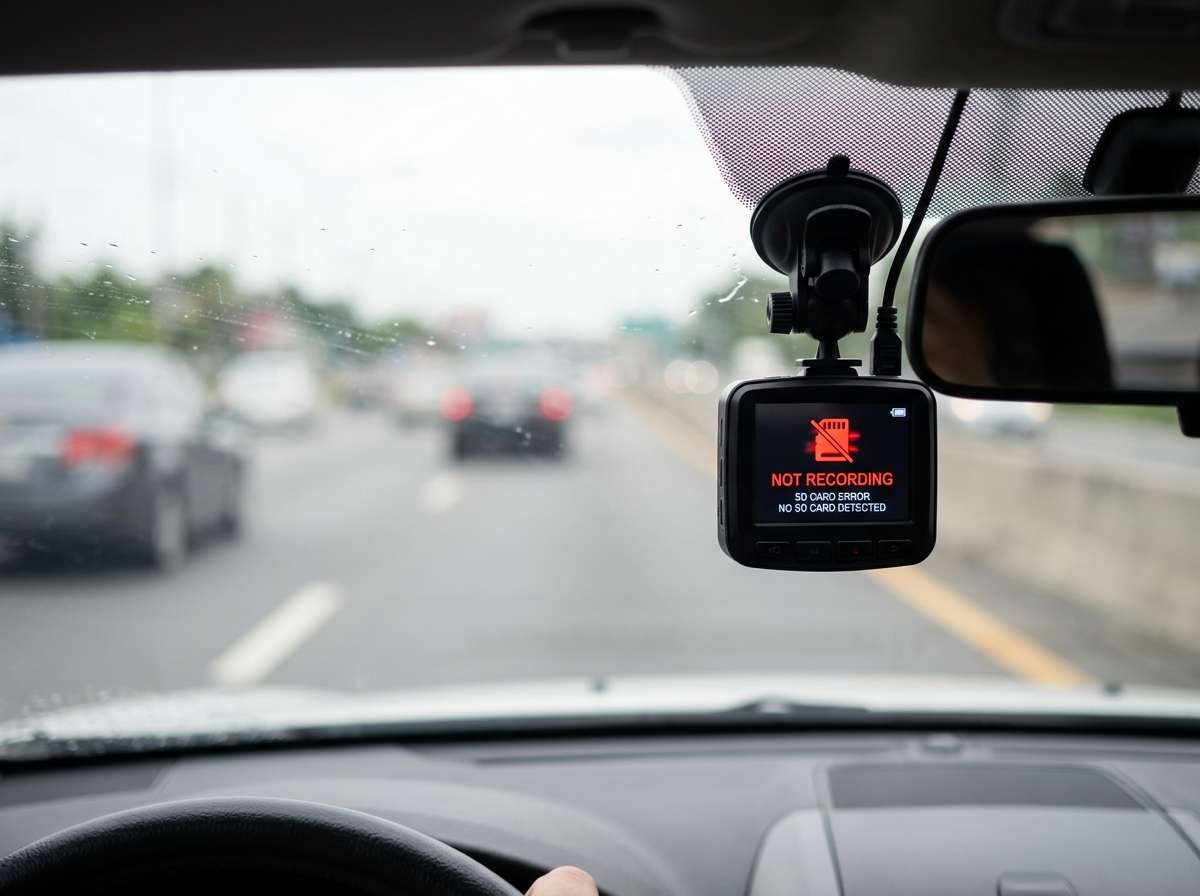
Your dash camera records video onto a memory card, usually called an SD card or microSD card. If this card has issues, your camera won’t save video files.
SD cards fail for lots of reasons. The card can get corrupted, develop errors, or simply wear out from too much use. Think of it like this: every time your camera writes video to the card, it uses up some of the card’s life. Most cards last for years, but they do eventually give up.
Here’s something many people don’t know: not all SD cards work well with dash cameras. Your camera needs a card that’s fast enough to write video continuously. If you’re using an old, slow card, the camera might not be able to save footage properly. The video file gets broken, or the camera stops trying.
Try this right now. Look at your SD card. Check the speed rating written on it. It should say something like “Class 10” or “V30.” If your card just says “Class 2” or has no rating at all, that’s likely your problem. Dash cams need Class 10 cards or cards marked with a V rating (V30 or higher is best).
Have you used your SD card for years? Time to replace it. Cards wear out. Get a new one designed for dash cameras specifically. You’ll spend less than thirty dollars, and this fixes the issue nine times out of ten.
The Recording Mode Setting Got Changed
Your dash camera has different recording modes. Some cameras record all the time. Others record only when motion happens. Some record only when they detect an impact or collision.
If someone changed your settings, or if the settings reset by accident, your camera might be set to a mode that doesn’t record when you want it to.
Check your camera’s menu. Look for settings related to recording mode or video recording. Make sure it’s set to continuous recording if that’s what you want. If it’s set to motion detection only, the camera only saves video when it sees movement. This might be why you think it’s broken when it actually works fine.
Look at your camera’s instruction manual. It came with your camera or you can find it online. Search for your exact camera model plus the word “manual.” The manual shows you exactly where the recording mode setting lives and what each option does.
Power Supply Issues From Your Car
Your dash cam needs steady power to work. If your car’s power system has problems, your camera might lose power even when it looks plugged in.
Your car has fuses. These small devices protect electrical circuits. If a fuse blows, power stops flowing to whatever that fuse protects. If your dash camera is connected to that circuit, it suddenly loses power.
Does your camera turn on but then randomly shut down? Does it restart while you’re driving? These are signs your power connection has trouble.
Check where your cable connects to your car’s power source. If you’re using your car’s USB port or cigarette lighter, try a different port. Sometimes ports get loose or stop working. Moving to a different port tells you if the original one is the problem.
If you’re using a hardwired installation, the problem might be in the fuse box. You can have a professional check this, but it costs money. First, try plugging your camera into your car’s regular USB port using the included cable. If it works fine that way, you know the hardwired connection has the issue.
Check These Settings First
Before you panic, check a few basic things.
Make Sure The Camera Is Actually On
This sounds obvious, but I’m serious. Push the power button. Look for a light that shows the camera is running. Some cameras have tiny lights that are hard to see in bright daylight.
If your camera has a screen, it might be off even though the camera itself is on. Many cameras save power by turning off the display after a few minutes. The camera keeps recording even with the screen dark. Don’t confuse a dark screen with a broken camera.
Try waiting a few seconds after powering on. Some cameras need time to start up fully before they begin recording.
Look For Storage Space Issues
Your SD card has a limit on how much video it can hold. When the card is completely full, many dash cameras stop recording instead of replacing old videos.
This is why many modern cameras use “loop recording” or “continuous overwrite.” The camera automatically deletes the oldest videos to make room for new ones. But some older cameras or some settings don’t use this feature. When the card fills up, the camera just stops.
Check your camera’s settings. Look for “loop recording” or “continuous recording” options. Make sure it’s turned on.
If loop recording is already on, your camera should replace old videos automatically. But if your camera has a special folder for protected or important videos, those files don’t get deleted. The protected videos take up space, and eventually the whole card fills up. Delete any videos you no longer need to protect, and your camera can record again.
To check how full your card is, remove it from the camera and put it in a computer. You’ll see a list of video files. If the card is almost full and you have old files you don’t need, delete them.
Reset Your Camera To Factory Settings
Sometimes the camera’s settings get messed up by accident. A loose cable, a power surge, or just random glitches can change settings that break recording.
Most dash cameras have a reset option in their menu. Find it and choose “reset to factory settings.” This erases all your custom settings and returns the camera to how it was new.
Before you reset, write down any special settings you’ve chosen. Recording quality, for example. After the reset, you can set them again. Once you reset, the camera usually starts recording fine again.
The reset button is sometimes a tiny hole on the back of the camera. You need a paperclip or small stick to press it. Hold it for several seconds. The camera restarts, and all settings return to factory defaults.
Fixing Physical and Connection Problems
Sometimes the problem isn’t software or settings. Sometimes it’s hardware.
Check Every Cable Connection
Your dash camera connects to power using a cable. This cable can get loose, bend, or develop breaks inside the cord even if it looks okay on the outside.
Unplug the cable from your camera. Look at the connector. Does it look clean or is there dirt, dust, or corrosion? Clean it gently with a dry cloth. Plug it back in and see if that helps.
Is the cable bent sharply? Bent cables can break the wires inside. If you see sharp bends or the cable feels stiff in one spot, that cable might be broken. Getting a replacement cable costs less than thirty dollars.
Try the cable in a different port on your car. Try plugging it into your phone charger or computer first. If the cable works fine with other devices, the problem isn’t the cable. It’s your camera’s power input or your car’s power source.
The Memory Card Slot Might Be Damaged
The slot where you insert your SD card can get damaged. The metal contacts can get bent, corroded, or dirty.
Remove your SD card. Look at the slot. Does it look clean? Are the metal contacts shiny or do they look green or brown from corrosion?
Clean the contacts on your SD card gently with a soft dry cloth. Also clean the metal contacts inside the slot if you can reach them safely. Dirt prevents good contact between the card and the camera.
If the slot looks physically damaged, like bent metal or broken plastic, you might need professional repair. But try cleaning it first. Cleaning fixes most contact problems.
Your Lens Might Be Blocked or Dirty
A dirty or blocked lens won’t record good video. Some cameras have a sensor that detects when the lens is blocked. If the sensor thinks the lens can’t see, it stops recording.
Clean your camera’s lens gently. Use a soft, clean cloth and light circular motions. Don’t press hard or use harsh materials that scratch glass.
Is there physical damage to the lens? Cracks, deep scratches, or broken glass means your camera needs professional repair or replacement.
Advanced Troubleshooting Steps
If nothing so far has worked, try these more advanced steps.
Update Your Camera’s Firmware
Firmware is like the camera’s brain. It controls how the camera works. If firmware has bugs or errors, the camera might stop recording.
Camera makers release firmware updates to fix bugs and improve performance. You can usually download these updates from the manufacturer’s website.
To update firmware, you typically download a file onto your computer, transfer it to the SD card using a card reader, insert the card into the camera, and run the update from the camera’s menu. The exact steps depend on your camera model.
Check your camera manufacturer’s website. Look for support or downloads. Find your exact camera model and look for firmware updates. If an update is available, the website shows instructions for installing it.
This might sound complicated, but it usually takes ten to fifteen minutes. It’s worth trying before you give up on your camera.
Test With a Different SD Card
If you can borrow another SD card, test your camera with it. This tells you if the problem is the card or the camera itself.
Borrow a friend’s SD card if possible. Put it in your camera and see if your camera suddenly records fine. If it does, your original card is the problem. Buy a new one.
If the camera doesn’t record even with the borrowed card, the problem is your camera, not the card.
Try a Factory Reset (More Thorough Version)
I mentioned resetting earlier. There’s usually an even more thorough factory reset option.
Some cameras have a “format SD card” option in the menu. This doesn’t just reset settings. It wipes the entire card completely and prepares it fresh for the camera to use.
Warning: formatting the card deletes every video on it. Only do this if you’ve backed up any videos you want to keep. Back up your videos to a computer first. Then format the card using the camera’s menu.
After formatting, the card is clean and fresh. Many recording problems disappear after a complete format because any corruption on the card is now gone.
When You Need Professional Help
Some problems need professional repair. You should take your camera to a professional if:
Your camera doesn’t turn on even when plugged in for hours. No lights come on. No sounds. Nothing happens. This suggests hardware failure inside the camera body.
The lens is cracked, broken, or severely damaged. Internal damage to the lens system usually requires a professional to fix properly.
The SD card slot is visibly bent, cracked, or physically damaged. Bent metal contacts inside the slot can’t be fixed at home.
Your camera recorded fine for years, then suddenly stopped working and none of these troubleshooting steps helped. Internal parts might have failed.
If your camera is still under warranty, contact the manufacturer first. Many companies offer free repair or replacement within the first year or two.
Preventing Recording Problems In The Future
Once you get your dash cam working again, you want to keep it working.
Replace your SD card every year or two, even if it seems fine. Cards wear out. Replacing them before they fail keeps your camera recording reliably. It’s cheap insurance.
Use a high-quality SD card designed for dash cams. Don’t buy the cheapest card you find. Cards made for dash cameras are built to handle continuous recording. They last longer and work better.
Keep your camera’s firmware updated. Check the manufacturer’s website every few months for new firmware versions. Install updates when they come out.
Clean your camera’s lens and connectors every month. A little dust and dirt don’t hurt, but years of buildup can cause problems. A quick wipe with a dry cloth takes thirty seconds and keeps everything working.
Make sure your camera has steady power. If your car’s power system has issues, your camera suffers too. Have your car’s electrical system checked by a mechanic if you have power problems.
Don’t use your camera in extreme temperatures. If your car gets very hot in summer or very cold in winter, your camera might struggle. Temperatures above 140 degrees or below minus ten degrees can damage batteries and electronics. This isn’t usually a problem in normal climates, but it’s something to know.
Quick Troubleshooting Checklist
Getting lost in all this information? Here’s a quick checklist. Go through these steps in order.
First, check that your camera is powered on. Push the button. Look for a light. Wait a few seconds.
Second, check your SD card. Is it properly inserted? Is it full? Remove it and reinsert it firmly.
Third, check your power connection. Is the cable plugged in? Is it loose? Try a different power port.
Fourth, check your camera’s recording mode setting. Is it set to continuous recording or is it set to motion detection only?
Fifth, format your SD card using the camera’s menu to wipe it clean.
Sixth, do a factory reset of your camera using the menu or the reset button.
Seventh, try a different SD card if you can borrow one.
Eighth, check for firmware updates on the manufacturer’s website and install any available updates.
If none of these steps work, your camera likely has hardware problems that need professional repair.
Common Questions About Dash Cam Recording
Why does my camera turn on but not record? Your camera might not have power to the recording mechanism, or the SD card slot might be having issues. Try formatting the SD card, checking the power connection, and doing a factory reset in that order.
My camera records but the video is black or completely dark. Is that a recording problem? This isn’t the same as not recording. Black video usually means the lens is dirty or blocked. Clean your camera’s lens carefully. If the lens is damaged, you might need repair.
Why does my dash cam only record for a few minutes then stop? This could be a battery issue if your camera has a battery. It could also be a power connection issue or the SD card getting full. Check all three.
Does my dash cam need internet to record? No. Dash cameras record locally onto the SD card inside them. They don’t need Wi-Fi or internet. If your camera has Wi-Fi, it’s only for backing up videos or viewing remotely. Recording works without any internet connection.
How often should I replace my SD card? Every one to two years is smart. Even if your card seems fine, the internal memory wears out from constant writing. Replacing cards prevents sudden failures during important moments.
Can I use any SD card in my dash cam? Not really. You need a fast card. Class 10 or V30 cards work best. Older, slower cards might not keep up with continuous recording and can cause problems.
Wrap-Up
Your dash camera stops recording for reasons you can fix yourself. Start with the easiest fixes: check power, check the SD card, check settings. Then move to harder troubleshooting: factory reset, firmware update, trying a different card.
Most of the time, one of these steps gets your camera working again. You don’t need to buy a new camera or take it to a professional. You just need patience and this guide.
Give yourself time to work through the checklist. Don’t rush. Check one thing carefully, then move to the next. When you find the problem and fix it, you’ll feel good knowing you solved it yourself.
Your dash camera is there to protect you. When it works, you have video proof of accidents, incidents, and road events. Get it working again today using this guide. Your peace of mind on the road depends on it.

Peterson is an automotive safety enthusiast and product reviewer with a passion for helping drivers stay safe on the road. He researches and tests dash cams, backup cameras, TPMS systems, emergency tools, GPS trackers, and other vehicle safety products to provide honest, practical recommendations. Through CarSafeties.com, Peterson shares in-depth reviews, buying guides, and maintenance tips to help drivers make smarter and safer decisions.