How to Read Dash Cam GPS Data?
If you just got a dash cam with GPS, you might be wondering what all those numbers and letters mean. Don’t worry! We’re going to break down everything about reading your dash cam GPS data in a way that makes sense.
In this article
What Exactly Is Dash Cam GPS Data?
Your dash cam records more than just video. It also tracks where your car goes using GPS technology. This data gets saved right alongside your video files. Think of it like a silent passenger that writes down your location the whole time you drive.
GPS stands for Global Positioning System. It’s the same technology your phone uses when you ask for directions. The dash cam captures your exact latitude and longitude coordinates. It also logs your speed, direction, and sometimes even altitude.
The dash cam GPS records this information over and over again. Most cameras take a reading every second or even more often. This creates a detailed map of your entire drive.
Why Should You Care About Your Dash Cam GPS Data?
You might think video footage is all you need. But GPS data gives you extra details that video alone cannot show.
First, GPS data proves where you were and when. This is huge for insurance claims. If someone hits you, the GPS timestamp shows the exact moment. It also shows your speed at that moment. Insurers love this kind of proof.
Second, GPS data helps you spot patterns in your driving. You can see which routes you take most often. You can track your average speed on different roads. Some people use this to find safer routes.
Third, GPS coordinates help locate where accidents happened. Video shows what occurred. GPS shows precisely where on the road it took place. This matters for insurance and police reports.
Fourth, you have a backup record of your journey. If you ever need to recall when you went somewhere, your dash cam GPS has that info locked in.
How Dash Cam GPS Works
Dash cam GPS needs signals from satellites. These satellites float high above Earth. Your dash cam receiver picks up signals from multiple satellites at once. The more signals it catches, the more accurate your location becomes.
The GPS unit calculates where you are based on how long signals take to arrive. It compares signals from different satellites. This math gives your exact position on Earth.
All this happens fast. Modern dash cams update GPS data multiple times per second. You get a super detailed record of your movements.
The GPS unit also knows your speed by tracking how your position changes. It calculates the direction you’re heading based on your movement. This gets saved alongside the location data.
One thing to know: GPS doesn’t work well inside tunnels or under bridges. The satellite signals get blocked. Your dash cam might show the same location for a few seconds. This is totally normal. The data picks back up once you exit the tunnel.
Different Ways Dash Cams Store GPS Data
Not all dash cams save GPS data the same way. Some record it inside the video file itself. Others save it as a separate file. Let’s look at the main types.
GPS Data Embedded in Video Files
Many modern dash cams put GPS info right into the video file. The video software reads this hidden data when you play the file. You don’t see the raw GPS numbers, but the camera might display your speed and location on the video itself.
This is really convenient. Everything stays together in one file. You don’t have to match different files or worry about losing data.
Separate GPS Log Files
Some dash cams create separate GPS files. These might be text files, CSV files, or special data files. They sit in the same folder as your video files.
Separate GPS logs are great if you want to analyze the data yourself. You can open them in different programs. You can plot them on maps. You get more control over what you do with the information.
Cloud Backup GPS Data
Fancy dash cams might upload GPS data to the cloud. You can check your trip history from your phone. You get maps showing where you drove. Some apps let you watch video with GPS overlay.
Cloud backup is convenient but requires an internet connection and account setup.
How to Find Your Dash Cam GPS Data
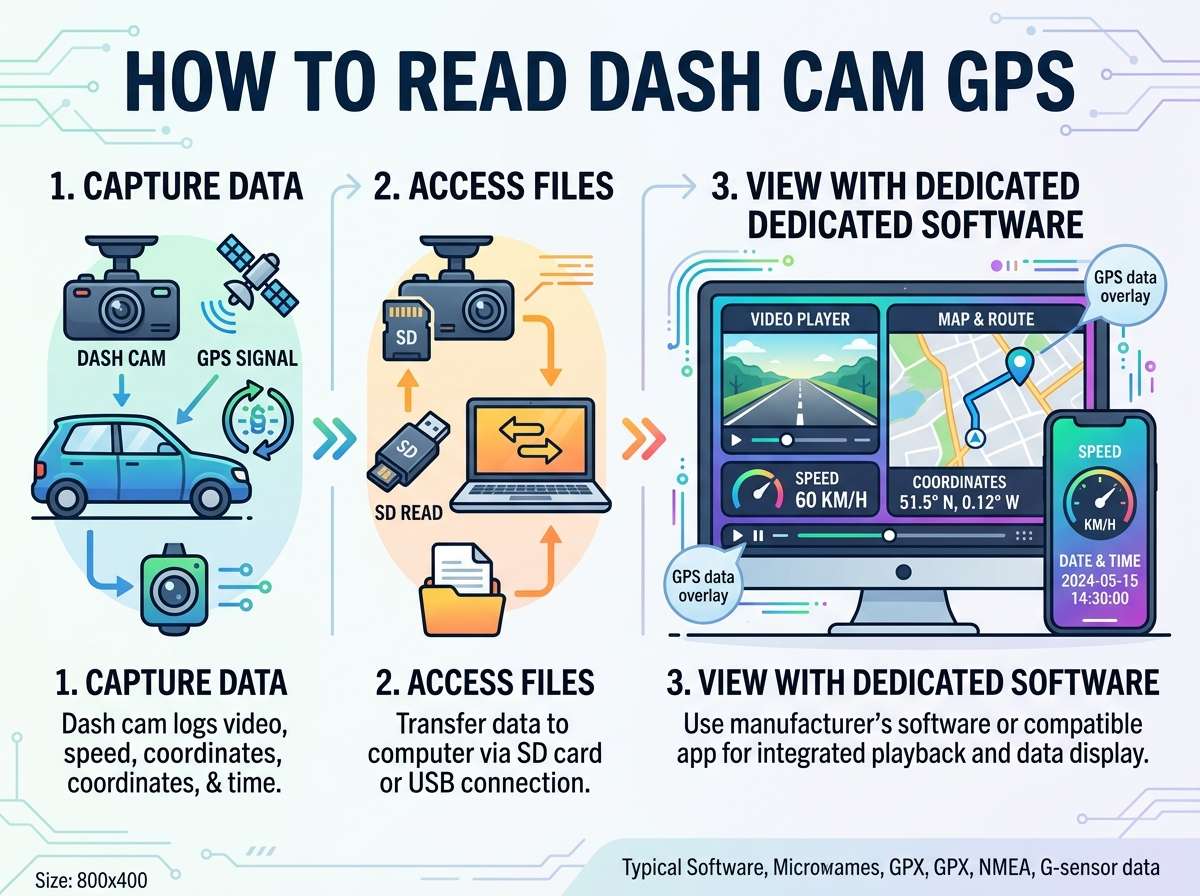
First, you need to get the files from your dash cam to your computer. Most dash cams have a USB cable or a memory card you can remove.
If your cam has a memory card, just pop it out. Connect it to your computer with a card reader. Navigate to the dash cam folder. Video files usually sit in a folder named “video” or “DCIM”. GPS data might be in a separate folder or mixed with the videos.
If your dash cam connects via USB, plug it into your computer. The camera should show up as a removable drive. You can copy the files just like from a memory card.
Once you have the files on your computer, look at the folder structure. Create a backup first. You never know when you might need the original files.
Reading GPS Data from Video Files
Many dash cam videos automatically show GPS information as text overlaid on the video. You’ll see speed, GPS coordinates, and timestamp right on the footage. Just play the video and watch.
To see the exact numbers more clearly, you might need special software. Some free programs can read GPS data embedded in video files.
Popular options include:
ExifTool is a command line tool that reads all kinds of data from files. It shows GPS coordinates, timestamps, and more. You can see the raw data it extracts.
VidCoder works with many video formats. It can extract GPS metadata. You see the information in a clear format.
MediaInfo shows technical details about video files. It displays GPS data if present. The interface is user-friendly for beginners.
These tools are free or cheap. They work on Windows, Mac, and Linux.
Understanding GPS Coordinates
GPS coordinates might look confusing at first. They’re actually pretty simple once you know what to look for.
A standard GPS coordinate has two parts: latitude and longitude. Latitude tells you how far north or south you are. Longitude tells you how far east or west.
Latitude goes from 0 to 90 degrees. A minus sign means south. No sign or a plus sign means north.
Longitude goes from 0 to 180 degrees. A minus sign means west. A plus sign means east.
An example coordinate might look like: 40.7128, -74.0060. This is New York City. The first number (40.7128) is latitude. The second number (-74.0060) is longitude.
Some coordinates use minutes and seconds instead of decimals. You might see: 40 degrees 42 minutes 45 seconds N, 74 degrees 0 minutes 22 seconds W. This is the same New York location just written differently.
Your dash cam probably uses decimal format. It’s easier to work with and more precise.
Decimal coordinates can have many digits after the point. More digits mean higher accuracy. Six decimal places gives accuracy to within a few feet. Most dash cams record at least that much detail.
Converting and Mapping Your GPS Data
Once you have GPS coordinates, you can plot them on a map. This shows your exact route. You see every turn you made.
Google Maps accepts GPS coordinates. Just type them in the search box. The map jumps right to that spot.
Many free websites let you paste multiple coordinates and see them on a map. You upload a GPS file and the site shows your entire route.
Some tools create interactive maps from GPS data. You can click different points to see what happened at that time.
To convert GPS coordinates to an address, use reverse geocoding. Google Maps does this automatically. You give it coordinates and it shows you the nearest address.
If you have a CSV file with GPS data, you can import it into mapping software. Programs like GPX converters take raw GPS data and make it viewable on maps.
Reading CSV and Text-Based GPS Files
If your dash cam created separate GPS files, they might be in CSV format or plain text format.
CSV stands for Comma Separated Values. Open these files in a spreadsheet program like Excel or Google Sheets. The data appears in columns and rows. Each row is usually one GPS reading.
You’ll see columns like Timestamp, Latitude, Longitude, Speed, Direction. Each row has values for these columns. It’s like a simple database of your journey.
Text files might look similar. Open them with Notepad. The data is readable but less organized than CSV. You can still pull out the numbers you need.
These file formats are great because you can analyze them however you want. You can find your maximum speed. You can see how long you spent at each location. You can identify problem areas in your driving.
Using Dash Cam Software to View GPS Data
Most quality dash cams come with software. This software reads your video files and displays GPS data on top.
Launch the software. Import your video file. The program plays the video and overlays GPS info. You see your speed in real time. You see your location as you drive. Some software shows a small map in the corner.
This is the easiest way for most people. You don’t need to understand raw data. The software presents everything in an easy format.
Popular dash cam software includes:
Viofo software works with Viofo cameras. It shows real time speed, GPS location, and direction.
Apeman Dash Cam app displays video with live GPS overlay.
Nextbase iQ software shows speed, location, and detailed trip data.
These programs often have free and paid versions. The free version usually shows basic data. Paid versions add features like trip analytics and cloud storage.
Reading Speed Data from GPS
GPS speed is valuable information. It’s measured in miles per hour (mph) or kilometers per hour (kmh).
Your dash cam records GPS speed constantly. This tells you exactly how fast you were going at any moment.
GPS speed and speedometer speed sometimes differ slightly. This is normal. GPS calculates speed by measuring position changes. Speedometers measure wheel rotation. They’re two different methods. Usually they’re close, but not identical.
GPS speed is actually more accurate for legal purposes. It’s harder to argue with GPS data. Speedometers can be slightly off. GPS has the real numbers.
You can find your maximum speed on any trip. You can find your average speed. You can see how often you exceed speed limits. This data helps you drive safer.
For accident investigation, GPS speed at the moment of impact is critical. It shows how fast everyone was going. This affects who might be at fault. This affects injury severity.
Timestamps in GPS Data
Every GPS reading has a timestamp. This records exactly when the reading was taken.
Timestamps usually show date and time. They might look like: 2024-03-15 14:32:45. This means March 15 at 2:32 PM and 45 seconds.
The exact format depends on your dash cam. Some use 24-hour time. Some use 12-hour time with AM or PM.
Timestamps are crucial for matching GPS data to video. If something happens at 2:32:45, you know exactly which frame in the video to look at. The timestamp gets you there instantly.
Timestamps also prove when you were at a location. They matter for work commutes. They matter for insurance claims. They matter for any situation where timing is important.
Make sure your dash cam clock is set correctly. An incorrect time throws off all your timestamps. Set it when you first install the camera.
Dealing with GPS Accuracy Issues
GPS isn’t perfect. Several things can affect accuracy.
Buildings and tall objects block signals. Urban canyons with skyscrapers create dead zones. Your GPS might jump around in the city.
Bad weather reduces accuracy. Heavy cloud cover, rain, and snow interfere with signals. Tropical locations with dense vegetation sometimes struggle.
Tunnels completely block GPS. Your location will stick on the last reading until you exit. This is expected behavior.
Age of satellites affects accuracy. Newer satellites are more reliable. Over time, the satellite constellation improves.
Your dash cam receiver quality matters. Cheap receivers are less accurate. Good receivers grab signals faster and more precisely.
If you see weird spikes in your GPS data, don’t panic. Sometimes GPS jumps 100 feet away and jumps right back. This is called signal noise. It’s annoying but temporary.
For critical analysis, smooth out the data. Ignore single data points that look way off. Real movement happens gradually. Big jumps are usually errors.
Using GPS Data for Insurance Claims
GPS data is powerful evidence in insurance claims. Here’s how to use it effectively.
If you had an accident, the GPS shows your location. It shows your speed. It shows the exact time. This becomes part of your evidence.
Export your GPS data for the incident. Take screenshots of the location on a map. Print a report showing your speed and direction at the moment of impact.
Insurance companies appreciate this data. It’s objective. It’s hard to argue against. It backs up your story.
Make sure your video file and GPS data match. The timestamp should sync up. Everything should tell the same story.
Keep your files organized. Label them clearly. Create a summary document explaining what happened. Attach copies of GPS data and video.
Some insurance companies now request GPS data. They want to verify how accidents occurred. Having it ready makes the process faster.
Privacy Considerations with GPS Data
Your dash cam records where you go every day. This is powerful data. Think about who has access to it.
If you share your dash cam footage, you’re also sharing GPS data. Be careful what you upload to social media. You might not want everyone knowing where you live or where you drive.
Some dash cams upload data to the cloud. Make sure you trust the company. Read their privacy policy. Know what they do with your data.
If you sell or give away your dash cam, wipe the data first. Don’t leave your location history on the device.
Be thoughtful about who you give access to your videos. Family members and insurance companies, sure. Strangers on the internet? Not so much.
Tips for Getting the Most from Your GPS Data
Want to really use your GPS data well? Here are some tips.
First, set your camera clock correctly. Accurate timestamps make everything easier.
Second, check your GPS data regularly. Make sure it’s recording properly. Some cameras stop logging GPS for various reasons. Check early so you can fix it.
Third, back up your files. Keep copies of important trip data somewhere safe. Don’t rely on just the memory card.
Fourth, test your software before you need it. Try reading GPS data when everything is calm. Don’t wait until you’re dealing with an accident.
Fifth, learn your camera’s specific setup. Every model is slightly different. Your manual explains where GPS data is stored. Read it.
Sixth, create a system for organizing files. Label trips by date. Keep accident footage separate. You’ll be glad you did this if something happens.
Common Mistakes People Make
Don’t fall into these traps.
Many people forget to set the clock on their camera. Then all timestamps are wrong. Fix this immediately.
Some people ignore GPS data during normal driving. Then they’re scrambling to understand it after an accident. Get familiar with it now.
Others delete files without backing them up. You might need this data someday. Keep copies.
People sometimes misread coordinates. Remember that minus signs matter. They change which hemisphere you’re talking about. Double-check numbers.
Some folks upload videos without checking privacy. You might expose your home address to strangers. Think before you share.
Final Thoughts
Reading dash cam GPS data isn’t hard. It just takes a little practice. Once you understand how it works, it becomes second nature.
Your dash cam GPS is like having a witness to your driving. It records facts that can’t be argued with. It backs up your story. It helps you drive safer.
Take time to explore your specific camera’s GPS features. Read the manual. Play with the software. Export some data. See how it works.
The more comfortable you get with GPS data now, the more helpful it will be if you ever need it. And hopefully, you won’t need it. But if you do, you’ll be ready.
Stay safe out there. And now you know what all those GPS numbers really mean.

Peterson is an automotive safety enthusiast and product reviewer with a passion for helping drivers stay safe on the road. He researches and tests dash cams, backup cameras, TPMS systems, emergency tools, GPS trackers, and other vehicle safety products to provide honest, practical recommendations. Through CarSafeties.com, Peterson shares in-depth reviews, buying guides, and maintenance tips to help drivers make smarter and safer decisions.