How to Format an SD Card for Your Dash Cam?
Your dash cam is only as good as the storage card you use. A properly formatted SD card keeps your footage safe, runs smoothly, and stops glitches before they happen. Many people skip this step and end up with corrupted files or slower performance. This guide walks you through everything you need to know about formatting your SD card for dash cam use.
In this article
Why Formatting Your Dash Cam SD Card Matters
Formatting seems like a technical task. It’s actually one of the easiest ways to protect your investment. When you format a card, you’re clearing out old files and setting up the card in the best way for your specific device.
Think of it like cleaning your car before a road trip. Sure, your car works without cleaning. But a clean car runs better and lasts longer. The same applies to your dash cam storage.
Dash cams need fast, reliable storage. A formatted card lets your dash cam write files at the speed it needs. Without proper formatting, your camera might skip frames or drop footage during important moments. You don’t want a blank screen when you need evidence of an accident.
Old files left on a card take up space. Formatting removes them completely. This frees up room for new recordings and prevents the card from getting too full and slowing down.
Formatting also reduces the risk of file corruption. When files get corrupted, you lose footage. A fresh format starts you with a clean slate where corruption is less likely to happen.
How to Pick the Right SD Card for Dash Cams
Before you format, make sure you have the right card. Not all SD cards work well with dash cams.
Card Size Matters
Dash cams work best with cards between 64GB and 256GB. Smaller cards like 32GB fill up fast if you drive daily. You’ll find yourself deleting old footage constantly.
Bigger cards solve this problem. A 128GB or 256GB card can hold weeks of driving without needing attention. Some dash cams support even larger cards, but check your camera manual first.
Speed Class Ratings
Speed ratings tell you how fast the card writes data. Look for cards with V30 or higher. This means the card can write at least 30 megabytes per second.
Dash cams need speed. They record video continuously and write data fast. If your card is too slow, frames drop and your footage has gaps. V60 and V90 cards are even better, but V30 is the minimum you should accept.
Brand Reputation Counts
Buy cards from trusted brands. Samsung, SanDisk, Kingston, and Lexar make reliable cards. Budget brands might save you a few dollars, but they fail more often.
Failed cards mean lost footage. That’s not worth the savings. Stick with brands that offer warranties and have good customer reviews.
TLC vs MLC Technology
Cards use different types of storage chips. MLC cards last longer and handle dash cam use better. TLC cards are cheaper but wear out faster.
For dash cam use, MLC is worth the extra cost. Your dash cam writes video constantly. This puts stress on the card. MLC handles this stress better than TLC.
Understanding Dash Cam File Systems
Your dash cam expects files in a specific format. This is called the file system. The most common ones are FAT32 and exFAT.
FAT32 Basics
FAT32 is older but still very common. Many dash cams use FAT32. It works with every operating system—Windows, Mac, and Linux all support it.
The downside? FAT32 has a size limit. Single files can’t be larger than 4GB. For dash cams that record in high definition, this matters.
If your dash cam records in 4K or very high bitrate, FAT32 might not work. Your camera will split videos into smaller chunks. This is fine, but it’s something to know.
exFAT Advantages
exFAT is newer. It removes the 4GB file size limit. This means your dash cam can record longer videos in one file.
Not every dash cam supports exFAT, though. Check your manual to see what your camera needs. If your dash cam supports both FAT32 and exFAT, exFAT is the better choice.
What Your Dash Cam Prefers
Your camera’s manual tells you the right file system. Don’t guess. Use what the manufacturer recommends. Using the wrong file system can cause glitches or prevent the camera from working at all.
Some newer dash cams come with exFAT cards. Others need FAT32. A few work with both. The manual makes this clear.
How to Format an SD Card on Windows
Windows makes formatting simple. You don’t need special software. The built-in tools work great.
Step 1: Insert the Card
Put your SD card into your computer. You need an adapter if your computer doesn’t have an SD card slot. These adapters are cheap and available everywhere.
Wait a few seconds for the computer to recognize the card. You should see it appear in File Explorer.
Step 2: Right-Click and Select Format
Find the card in File Explorer. Right-click on it. A menu pops up.
Click “Format” from the menu. A dialog box opens.
Step 3: Choose Your Settings
The dialog asks for file system and volume name.
For file system, select “FAT32” if your dash cam needs it. Select “exFAT” if your camera supports it and you want longer video files.
The volume name is what the card is called. You can call it “DashCam” or anything else. This doesn’t affect how the card works.
Step 4: Start the Format
Click “Start.” Windows asks if you’re sure. Click “Yes.”
The process takes seconds to a minute. Your card is now formatted and ready for your dash cam.
Using Disk Management for More Control
Some people like using Disk Management for extra options. Right-click the Windows Start button and select “Disk Management.”
Find your SD card in the list. Right-click it and select “Format.”
You get more options here, but the basic process is the same. Most people don’t need these extra options.
How to Format an SD Card on Mac
Mac users have two simple methods.
Method 1: Using Finder
Open Finder and find your SD card. Click on the card to select it.
Go to the top menu and click “File.” Look for “Erase” (Mac calls formatting “erasing”).
A dialog box opens. Choose your file system and give the card a name.
Click “Erase” and confirm. Mac formats the card in seconds.
Method 2: Using Disk Utility
Open Disk Utility from your Applications folder.
Find your SD card in the list on the left. Click it.
Click the “Erase” button at the top. Select your file system and name.
Click “Erase” to start.
Both methods work well. Use whichever feels easier for you.
How to Format an SD Card on Linux
Linux users have several options.
Using GParted (Graphical Method)
Install GParted if you don’t have it already. Open it and find your SD card.
Right-click the device and select “Format to” and then choose FAT32 or exFAT.
Confirm the action. GParted handles the rest.
Using the Command Line
For experienced users, the terminal works fast. Identify your card using lsblk or fdisk -l.
Use mkfs.fat -F 32 /dev/sdX for FAT32 or mkfs.exfat /dev/sdX for exFAT. Replace X with your card’s letter.
Always double-check the device letter. Using the wrong one erases the wrong drive.
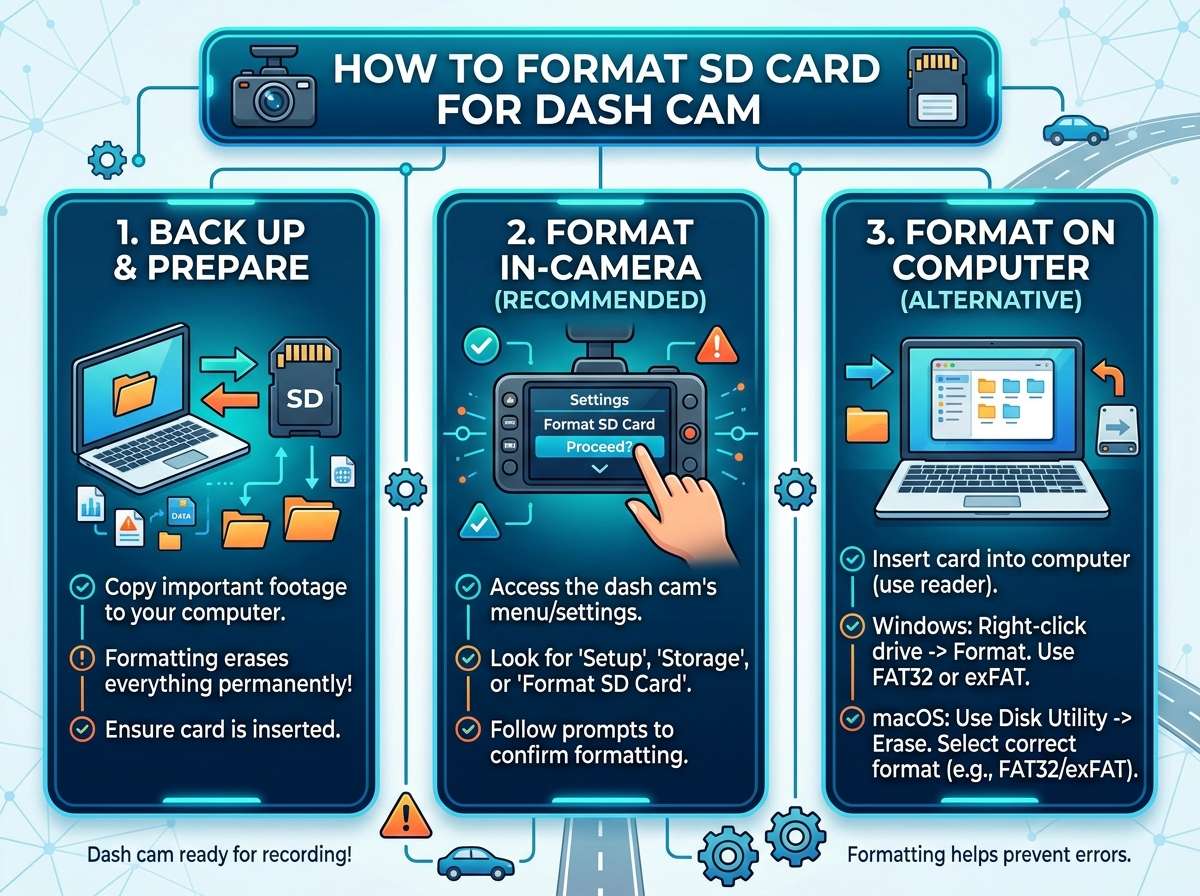
How to Format Your Dash Cam SD Card Directly in the Camera
Many dash cams have a built-in format option. This is actually the best way.
When you format the card in the camera, the card is set up exactly how the camera likes it. This reduces compatibility issues.
Go to your dash cam’s menu. Look for “Settings,” “Storage,” or “Format Card.”
Select the option and confirm. The camera formats the card. This takes a minute or two.
Your camera might ask if you’re sure. It will warn you that all data gets deleted. Click yes to proceed.
Using your camera to format also makes sure the file system is right. You can’t make a mistake because your camera handles it all.
Important Things to Do Before Formatting
Formatting erases everything on the card. You need to be careful.
Back Up Your Footage
If there’s video on the card you want to keep, copy it to your computer first.
Connect the card to your computer. Open File Explorer or Finder.
Drag all the video files to a folder on your hard drive. Wait for the copy to finish.
Only format the card after you’ve copied everything you need.
Make Sure You’re Formatting the Right Card
This is critical. Formatting erases the entire card. If you format the wrong drive, you lose important files.
Before you start, label your cards. Use a marker to write “Dash Cam” on the one you’re formatting.
Check twice in your computer that you’ve selected the correct device. Look for the card’s size and name.
Taking thirty seconds to verify saves hours of regret.
Power Off Your Dash Cam
Always turn off your dash cam before removing the card. This prevents glitches.
Let the camera shut down completely. Don’t just remove the card while it’s on.
Wait a few seconds after turning it off. This ensures the camera isn’t still writing to the card.
How Often Should You Format Your Dash Cam Card?
New drivers often ask this question.
Most people format their dash cam card every few weeks. It depends on how much you drive.
If you drive daily and record constantly, format once a month. This keeps the card healthy and prevents file corruption.
If you drive less, you can format every other month. The key is not letting old footage pile up.
Regular formatting is like maintenance. It keeps everything running smooth.
You don’t need to format every time you delete videos. Deleting files is fine. Formatting is for when you want a completely clean slate or if you notice glitches.
Common Formatting Problems and How to Fix Them
Sometimes formatting doesn’t go smoothly. Here’s how to solve the most common issues.
The Computer Won’t Recognize the Card
Try a different USB port. Some ports have connection issues.
Use a different SD card adapter if you have one.
Clean the contacts on the card with a soft, dry cloth. Dust can block the connection.
If another computer recognizes the card, your computer’s reader might be broken. Try a USB card reader instead.
The Format Fails or Takes Too Long
This usually means the card has bad sectors. Parts of the card are damaged.
Try formatting again. Sometimes it works the second time.
If it keeps failing, the card is dying. It’s time for a new one.
The Dash Cam Still Doesn’t Recognize the Formatted Card
Make sure you formatted with the right file system. Check the camera manual again.
Try formatting the card in the camera instead of the computer. Many compatibility issues disappear when you do this.
If the camera still doesn’t recognize it, the card might be defective. Test it in another dash cam if you can.
The Card Formats but Corrupts Quickly
This is usually a sign the card is failing. Even new cards can be defective.
If this happens during the return window, exchange the card for a new one.
Quality brands like SanDisk and Samsung usually stand behind their products with warranties.
Best Practices for SD Card Care
Formatting is one part of keeping your card healthy. Here are other important practices.
Store Cards in a Cool, Dry Place
Heat damages cards. Don’t leave cards in hot cars or direct sunlight.
Humidity also harms cards. Store them in a dry environment.
Don’t Remove the Card While Recording
Always stop recording before removing the card. Sudden removal can corrupt files.
Turn off your dash cam. Wait a few seconds. Then remove the card.
Use Your Dash Cam to Format
Your camera knows what the card needs. Using the camera to format prevents compatibility issues.
If your camera has a format option, use it instead of formatting on your computer.
Check Your Card Every Month
Look at your dash cam’s footage regularly. Make sure videos are recording properly.
If footage starts cutting out or freezing, reformat the card.
Replace Old Cards
Cards don’t last forever. A card that’s a few years old might start failing.
If you notice glitches or corruption, replace the card even if it seems to work most of the time.
A new card costs less than losing important footage.
What to Expect After Formatting
After you format, your card is ready for your dash cam. But what happens next?
Your camera will use the card normally. It records video and saves files. You don’t do anything special.
Keep recording for a few days. Make sure everything works as it should. Videos should be clear and consistent with no glitches.
Some dash cams create folders on the card automatically. This is normal. The camera organizes footage by date or time.
You can delete old footage from your computer anytime. Just keep the card mostly clear of old files.
Every month or two, repeat the formatting process. This keeps the card performing at its best.
FAQ: Common Questions About Formatting Dash Cam Cards
Do I lose everything when I format?
Yes. Formatting erases all files on the card. Back up anything you want to keep before you start.
Can I use any SD card with my dash cam?
Not quite. Your camera works best with specific cards. Check the manual for recommendations.
Large, fast V30 cards work with most dash cams. But your manual has the exact requirements.
Is formatting the same as deleting files?
No. Deleting files removes individual videos. Formatting clears the entire card and sets up the file system fresh.
How fast should my card be?
V30 is the minimum. V60 or V90 is better. Your manual might specify what your camera needs.
Can I format a card that’s in the middle of recording?
No. Always stop recording and turn off your camera first. Then remove the card and format it.
What file system should I use?
Check your manual. FAT32 works with most cameras. exFAT is better for high-resolution video.
Can I format a damaged card?
You can try. But if the card is severely damaged, it might not format. A defective card is better replaced than repaired.
How long does formatting take?
Usually a few seconds to a minute. It depends on the card size and your computer speed.
Final Thoughts
Formatting your SD card for your dash cam is simple and takes just minutes. It keeps your footage safe and your camera working smoothly.
Start with a quality card. V30 or faster, 64GB or larger, from a trusted brand.
Format before you use the card. Use your camera to format if possible.
Format regularly—every month or two depending on how much you drive.
Clean the card’s contacts. Keep it cool and dry. Don’t remove it while recording.
These simple steps add years to your card’s life and keep your dash cam footage reliable.
Your dash cam protects you on the road. A properly formatted SD card makes sure it does its job. Take the time to do this right, and you’ll have clear, continuous footage for every drive.

Peterson is an automotive safety enthusiast and product reviewer with a passion for helping drivers stay safe on the road. He researches and tests dash cams, backup cameras, TPMS systems, emergency tools, GPS trackers, and other vehicle safety products to provide honest, practical recommendations. Through CarSafeties.com, Peterson shares in-depth reviews, buying guides, and maintenance tips to help drivers make smarter and safer decisions.