GPS Tracker Troubleshooting Tips
When a GPS tracker stops reporting or shows the wrong place, it can be frustrating. Most gps tracker troubleshooting tips are simple checks that take only a few minutes. This article explains what usually goes wrong and what steps to follow.
You do not need technical skills to work through these checks. The guide covers basic causes, step-by-step fixes, and prevention. It also explains when to contact the manufacturer or a technician.
Key Takeaways
- Most tracker problems come from power, signal, or SIM service, not a broken device.
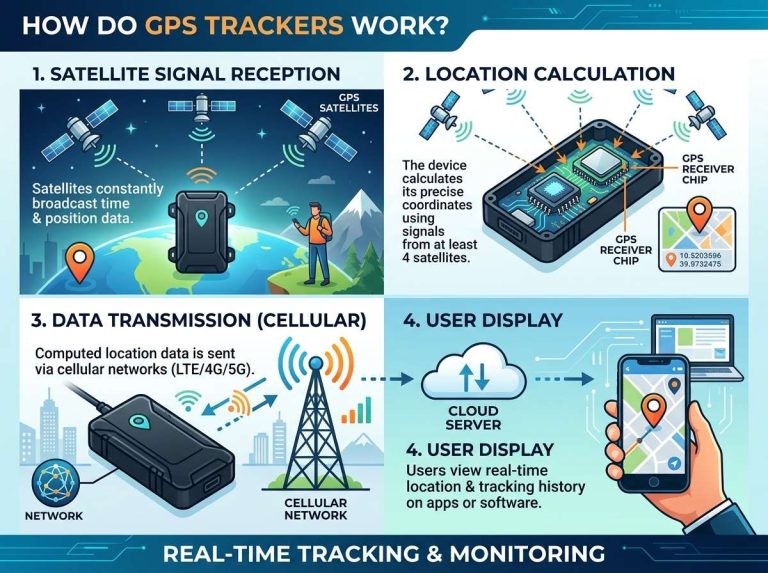
- A tracker finds its position with satellite signals and sends it over cellular data.
- Check the battery, SIM, and restart first before changing settings.
- Test in an open area to see if the signal improves.
- Keep software updated and set reporting times that fit your needs.
Why GPS Tracker Problems Happen
A GPS tracker needs power, a clear view of the sky, and a mobile connection to send data. If one part fails, the tracker may stop reporting or report incorrectly. Knowing this helps you narrow down the cause.
Common Signs Your GPS Tracker Is Not Working
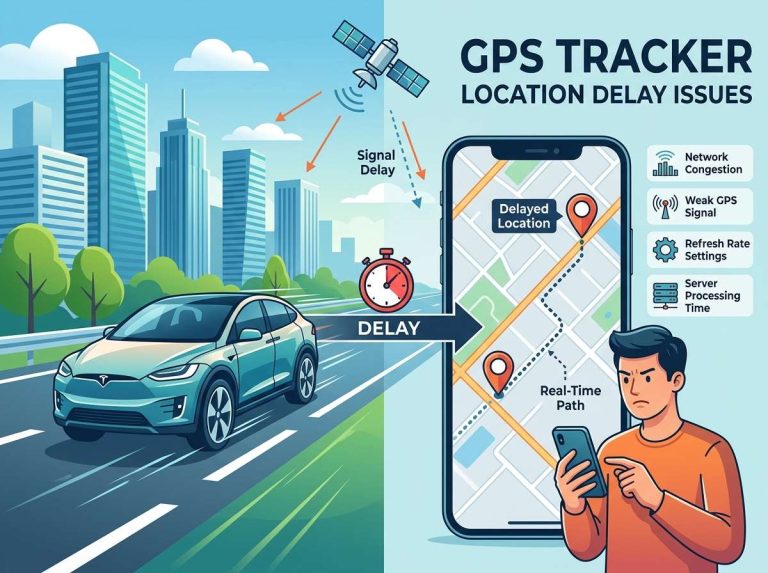
The most common sign is that the location stops updating. The map may show the same spot for hours, or the last report may be very old. Some trackers also go offline in the app while the device stays installed.
Other signs include late alerts, positions that jump around, or no response when you request a new location.
Weak Signal, Dead Batteries and Other Basic Causes
Many problems have simple causes. A low or dead battery stops the device. A weak satellite or cellular signal can also stop updates, especially indoors, underground, or in dense areas.
Loose wiring, an expired SIM plan, or a frozen device are other common causes. Check these basics first, since they account for most cases.
How a GPS Tracker Works
A GPS tracker is a small device that works out where it is and then shares that information. Knowing the two main steps makes troubleshooting easier. It also explains why some problems appear only in certain places.
GPS Signals, Cellular Data and Location Updates
The GPS part receives signals from satellites orbiting Earth and uses them to calculate position. This step needs a clear view of the sky, but not a mobile connection.
The cellular part then sends that position to a server, and the app shows it to you. An active SIM card with service is essential. The app displays the latest update based on how often the tracker reports.
Why Location Accuracy Can Drift
Accuracy can vary for normal reasons. Tall buildings, trees, tunnels, and heavy cloud cover can block or bounce satellite signals. The position may then drift by a few meters or show a nearby street instead of the exact spot.
Large or repeated errors usually point to a signal or setting problem. Small drift in a city is often normal for this type of device.
Basic GPS Tracker Troubleshooting Steps
Work through these checks in order, starting with the simplest, since they often fix problems quickly. Write down each change so you can undo it if needed.
Check the Battery and Power Connection
For a battery-powered tracker, check the charge level in the app or on the device, then charge it fully with the correct cable and charger. For a wired tracker, confirm the power wires are firmly connected and any fuse is intact.
A device that will not turn on or shows no lights usually has a power issue.
Confirm the SIM Card Has Active Service
The SIM card needs an active data plan. If the plan has expired or the balance is empty, the tracker cannot send updates. Contact your mobile provider to check the line’s status.
Make sure the SIM sits correctly in its slot. Reinserting it gently can fix poor contact. Do not force the card, as this can damage it.
Restart the Device and Reset Settings
A restart clears many temporary faults. Turn the tracker off, wait briefly, and turn it back on, then give it a few minutes to find satellites and reconnect.
If problems continue, check the manufacturer’s manual for the correct reset method, since steps vary by model. Note your saved settings first, because a reset usually erases them.
Test the Tracker in an Open Area
Move the tracker outside, away from buildings and metal objects, and let it sit for a few minutes with a clear view of the sky. If it updates properly there, the problem is likely signal blockage rather than a fault.
Fixing Common GPS Tracker Issues
Some problems appear again and again. Matching your symptom to a specific fix saves time.
No Location Updates or Frozen Positions
If the map shows the same spot for a long time, check the battery and SIM first, then confirm the reporting interval is not set too long. A frozen position often means the tracker has lost its cellular connection.
Restarting the device usually reconnects it. If the freeze returns, contact the provider or manufacturer.
Inaccurate Location or Wrong Address
Wrong addresses often come from weak satellite signals or nearby obstacles. Move the tracker to a clearer spot and wait for a fresh reading, then compare the map with a known location to judge the error.
Also confirm your app uses the correct map and the device is set to the right region. Focus on large or repeated mistakes, since small errors are normal.
Delayed Alerts and Missed Notifications
Alerts can arrive late when the reporting interval is long or the cellular signal is weak. Shorter intervals give faster alerts but use more battery and data.
Make sure notifications are turned on in both the app and your phone. A blocked notification setting can look like a tracker fault.
App Login Problems and Connection Errors
If you cannot log in, check your username and password first, and reset the password if needed. Make sure the app is updated and your phone has a working internet connection.
Connection errors can also come from the server side. If the app works on another phone or network, wait a short time and try again.
Tips for Preventing Future GPS Tracker Problems
Good habits reduce the chance of future faults. Small steps taken early often prevent bigger problems later. These tips suit most tracker types.
Keep Firmware and Apps Up to Date
Firmware is the built-in software that runs the tracker. Manufacturers release updates that fix bugs and improve stability. Install updates when offered, and keep the app current too. Read the update notes, since some updates need a restart or a short setup step.
Set Reporting Intervals That Match Your Needs
The reporting interval controls how often the tracker sends its location. Frequent updates give more detail but drain the battery faster. Less frequent updates save power but may miss short movements. Base the setting on how you plan to use the tracker.
Mount the Tracker for Better Signal
Placement affects signal quality. Mount the tracker where it has a clear view of the sky, if possible. Avoid hiding it under metal parts, thick dashboards, or deep inside a bag. A spot near a window or on an open surface often works better.
Example Scenarios: Troubleshooting in Practice
These examples are general illustrations of common situations, not reports of specific devices.
A Vehicle Tracker That Stops Reporting in a Garage
A vehicle tracker may go quiet in a covered garage. The roof blocks the GPS signal, so the device cannot calculate a fresh position. Updates usually return once the vehicle leaves the garage. Here the fix is often placement or patience, not repair.
A Personal Tracker With Drained Battery Overnight
A personal tracker may run out of power by morning. A very short reporting interval or weak signal makes the device work harder to connect. Lowering the update frequency can help. Charge the device fully before use, and check the battery level in the app for a few days to spot a pattern.
When to Contact the Manufacturer or a Technician
Some problems need expert help. Contact the manufacturer if the device stays offline after basic checks, shows error codes, or gets hot or swollen. Report battery safety concerns right away. A technician can help with wired installations or damaged hardware, so keep your device details and purchase information ready.
Frequently Asked Questions
Why does my GPS tracker show the wrong location?
Weak satellite signals, buildings, or trees often cause wrong positions. Moving the tracker to an open area and waiting for a fresh reading usually helps. Small differences are normal, but large or repeated errors need a closer look.
How do I know if my GPS tracker needs a new SIM card?
A new SIM is likely needed if the tracker stops sending updates and the plan has expired or been cancelled. Check the line status with your mobile provider first. If the service is active, the SIM may be fine.
Why does my GPS tracker battery drain so fast?
Frequent reporting and weak signals force the device to work harder. Lowering the update frequency and placing the tracker where it has a clear view can help.
Can weather or buildings affect my GPS tracker?
Yes. Heavy cloud cover, tall buildings, and tunnels can weaken satellite signals. These effects are usually temporary, and updates often return once the device has a clearer view.
Do I need to reset my GPS tracker after a firmware update?
Not always. Many updates install and restart the device without a full reset. Check the update notes or the manufacturer’s guide to see if a reset or setup step is required.
Conclusion
Most GPS tracker problems have simple causes, such as low power, weak signal, or an inactive SIM. Checking these first, then restarting and testing in an open area, solves many issues. Keeping software updated and using sensible reporting settings prevents future faults. When basic steps fail, contact the manufacturer or a technician.

Peterson is an automotive safety enthusiast and product reviewer with a passion for helping drivers stay safe on the road. He researches and tests dash cams, backup cameras, TPMS systems, emergency tools, GPS trackers, and other vehicle safety products to provide honest, practical recommendations. Through CarSafeties.com, Peterson shares in-depth reviews, buying guides, and maintenance tips to help drivers make smarter and safer decisions.